> ## Documentation Index
> Fetch the complete documentation index at: https://mainwp-abilities-review-add-update.mintlify.site/llms.txt
> Use this file to discover all available pages before exploring further.
# Domain Monitor
> MainWP Domain Monitor Extension lets you keep a watchful eye on your domains. It alerts you via email when monitored domains are nearing expiration.
## What You'll Learn
* Checking domain expiration dates across all sites
* Entering domain info manually for unsupported TLDs
* Scheduling automated domain checks
* Using Pro Reports tokens for domain data
***
## Supported TLDs
**Extension Add-on** - This add-on provides standalone functionality within MainWP Dashboard. No third-party plugins required.
**Domain lookup may fail or return incomplete data for some TLDs due to restrictions or a lack of available information from RDAP or WHOIS services.**
### TLD lookup support
Domain Monitor attempts lookups through RDAP first. If RDAP does not return usable domain data, the extension falls back to its built-in WHOIS server map for TLDs with a configured WHOIS server.
For current TLD lookup references, use these maintained external sources:
* [IANA RDAP DNS bootstrap data](https://data.iana.org/rdap/dns.json) - Current RDAP service coverage by TLD.
* [IANA Root Zone Database](https://www.iana.org/domains/root/db) - Current TLD registry records, including WHOIS server details where available.
If the extension cannot retrieve your domain information automatically, you can enter it manually as described [**below**](#enter-domain-info-manually).
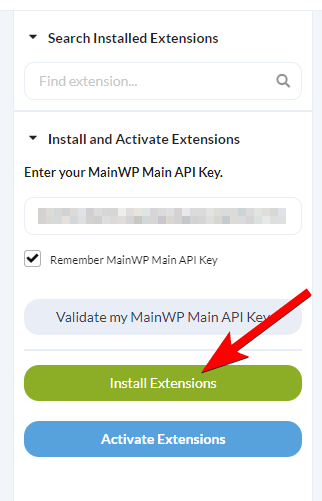
## Install and Set Domain Monitor Extension
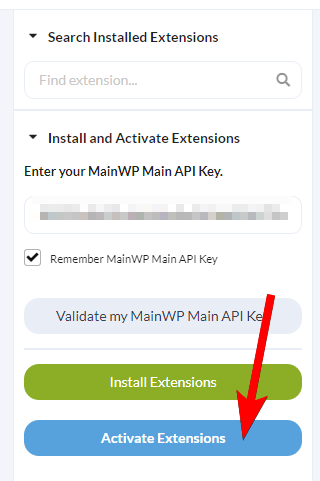
Once the installation process is complete, click the **Activate Add-ons** button
## Check Domains
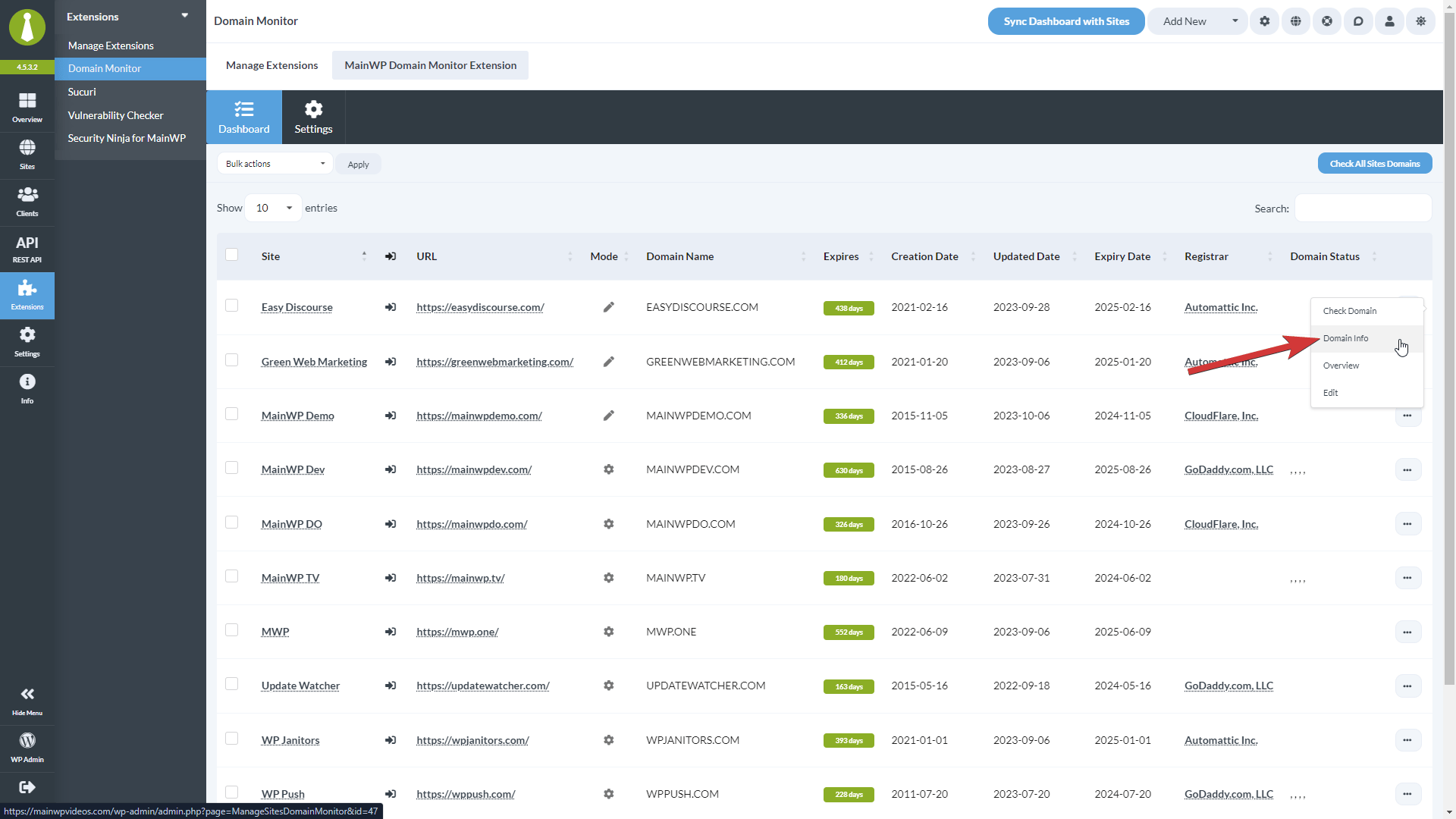
Alternatively, you can use the **Bulk actions** menu to check selected sites, or use the **Check Domain** action from the site **Actions** menu to audit just one site.
### Unscanned Sites
Sites that have not been checked yet are highlighted in the Domain Monitor dashboard so you can spot them at a glance:
* The row is shaded yellow.
* The **Expires** column shows a **Not checked** button instead of remaining days. Click it to run a check for that site.
* Domain fields with no data display **N/A**.
* The **Domain Info** action is disabled until the first successful check completes.
Once a check completes, the row returns to its normal style and the remaining-days indicator (green, yellow, or red hourglass) appears based on how close the domain is to expiration.
## Enter Domain Info Manually
If your domain is not on the list of supported TLDs, you can add information manually by following the steps below.
Toggle on the **Manual Domain information entry** option and click **Save Settings**
## See Domain Info
Locate the site/domain you want to check in the list and use the **Domain Info** action from the **Actions** menu.
## Schedule Automated Checks
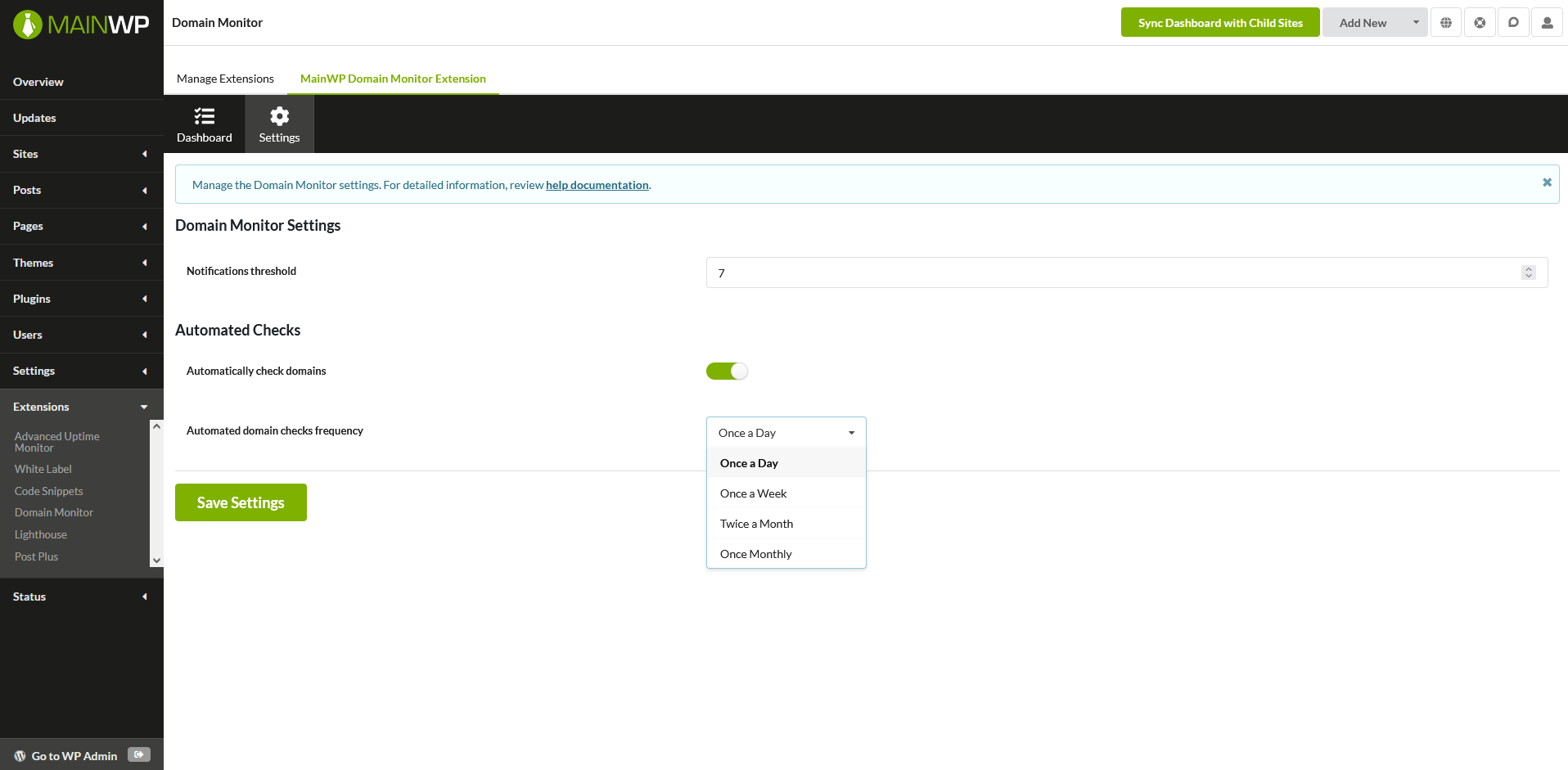
Choose **Once a Day**, **Once a Week**, **Twice a Month**, or **Once Monthly**.
## Domain Monitor Settings
* **Notifications threshold** - Set the threshold for notifications. If the domain expiration is less in the set number of days, an email will be sent.
* **Automatically check domains** - If you want the extension to automatically run checks, enable this feature.
* **Automated domain checks frequency** - If automated checks are enabled, here you can set how often you want them to run.
## Check Sites via WP CLI
Check one or more sites:
```bash theme={null}
wp mainwp-domain-monitor check 129
wp mainwp-domain-monitor check 129,130
```
Check all sites:
```bash theme={null}
wp mainwp-domain-monitor check --all
```
View saved domain profiles for one or more sites:
```bash theme={null}
wp mainwp-domain-monitor results 129
wp mainwp-domain-monitor results 129,130
wp mainwp-domain-monitor results --all
```
## Domain Monitor REST API
MainWP REST API calls, including Domain Monitor endpoints, full documentation, and examples, are available in the [MainWP Postman workspace](https://www.postman.com/mainwp/workspace/mainwp/overview). Refer to our [REST API documentation](/api-reference/rest-api/overview) for more details on enabling REST API and managing API keys.
## Automation
With version 5.3.0, you can use automation to view saved domain expiry details, manage monitoring settings, update manually entered domain information, and request domain checks. A failed settings or domain-information save shows an error instead of appearing to succeed. Domain lookup replies that do not match the requested domain are not saved, and notification emails safely display site and domain details.
## Available Reports Tokens
* `[domain.monitor.domain.name]` - Displays the domain name.
* `[domain.monitor.registrar]` - Displays the domain registrar.
* `[domain.monitor.updated.date]` - Displays the domain updated date.
* `[domain.monitor.creation.date]` - Displays the domain creation date.
* `[domain.monitor.expiry.date]` - Displays the domain expiry date.
* `[domain.monitor.expires]` - Displays the number of days left before the domain expires.
* `[domain.monitor.status]` - Displays the domain status.
* `[domain.monitor.last.check]` - Displays the last check timestamp.
***
## Related Resources
* [Monitoring Add-ons](/add-ons/monitoring) - Browse all monitoring tools
* [SSL Monitor](/add-ons/monitoring/mainwp-ssl-monitor-extension) - Monitor SSL certificates
* [Pro Reports Extension](/add-ons/agency/pro-reports-extension-overview) - Include domain data in reports


 * **Notifications threshold** - Set the threshold for notifications. If the domain expiration is less in the set number of days, an email will be sent.
* **Automatically check domains** - If you want the extension to automatically run checks, enable this feature.
* **Automated domain checks frequency** - If automated checks are enabled, here you can set how often you want them to run.
## Check Sites via WP CLI
Check one or more sites:
```bash theme={null}
wp mainwp-domain-monitor check 129
wp mainwp-domain-monitor check 129,130
```
Check all sites:
```bash theme={null}
wp mainwp-domain-monitor check --all
```
View saved domain profiles for one or more sites:
```bash theme={null}
wp mainwp-domain-monitor results 129
wp mainwp-domain-monitor results 129,130
wp mainwp-domain-monitor results --all
```
## Domain Monitor REST API
MainWP REST API calls, including Domain Monitor endpoints, full documentation, and examples, are available in the [MainWP Postman workspace](https://www.postman.com/mainwp/workspace/mainwp/overview). Refer to our [REST API documentation](/api-reference/rest-api/overview) for more details on enabling REST API and managing API keys.
## Automation
With version 5.3.0, you can use automation to view saved domain expiry details, manage monitoring settings, update manually entered domain information, and request domain checks. A failed settings or domain-information save shows an error instead of appearing to succeed. Domain lookup replies that do not match the requested domain are not saved, and notification emails safely display site and domain details.
## Available Reports Tokens
* `[domain.monitor.domain.name]` - Displays the domain name.
* `[domain.monitor.registrar]` - Displays the domain registrar.
* `[domain.monitor.updated.date]` - Displays the domain updated date.
* `[domain.monitor.creation.date]` - Displays the domain creation date.
* `[domain.monitor.expiry.date]` - Displays the domain expiry date.
* `[domain.monitor.expires]` - Displays the number of days left before the domain expires.
* `[domain.monitor.status]` - Displays the domain status.
* `[domain.monitor.last.check]` - Displays the last check timestamp.
***
## Related Resources
* [Monitoring Add-ons](/add-ons/monitoring) - Browse all monitoring tools
* [SSL Monitor](/add-ons/monitoring/mainwp-ssl-monitor-extension) - Monitor SSL certificates
* [Pro Reports Extension](/add-ons/agency/pro-reports-extension-overview) - Include domain data in reports
* **Notifications threshold** - Set the threshold for notifications. If the domain expiration is less in the set number of days, an email will be sent.
* **Automatically check domains** - If you want the extension to automatically run checks, enable this feature.
* **Automated domain checks frequency** - If automated checks are enabled, here you can set how often you want them to run.
## Check Sites via WP CLI
Check one or more sites:
```bash theme={null}
wp mainwp-domain-monitor check 129
wp mainwp-domain-monitor check 129,130
```
Check all sites:
```bash theme={null}
wp mainwp-domain-monitor check --all
```
View saved domain profiles for one or more sites:
```bash theme={null}
wp mainwp-domain-monitor results 129
wp mainwp-domain-monitor results 129,130
wp mainwp-domain-monitor results --all
```
## Domain Monitor REST API
MainWP REST API calls, including Domain Monitor endpoints, full documentation, and examples, are available in the [MainWP Postman workspace](https://www.postman.com/mainwp/workspace/mainwp/overview). Refer to our [REST API documentation](/api-reference/rest-api/overview) for more details on enabling REST API and managing API keys.
## Automation
With version 5.3.0, you can use automation to view saved domain expiry details, manage monitoring settings, update manually entered domain information, and request domain checks. A failed settings or domain-information save shows an error instead of appearing to succeed. Domain lookup replies that do not match the requested domain are not saved, and notification emails safely display site and domain details.
## Available Reports Tokens
* `[domain.monitor.domain.name]` - Displays the domain name.
* `[domain.monitor.registrar]` - Displays the domain registrar.
* `[domain.monitor.updated.date]` - Displays the domain updated date.
* `[domain.monitor.creation.date]` - Displays the domain creation date.
* `[domain.monitor.expiry.date]` - Displays the domain expiry date.
* `[domain.monitor.expires]` - Displays the number of days left before the domain expires.
* `[domain.monitor.status]` - Displays the domain status.
* `[domain.monitor.last.check]` - Displays the last check timestamp.
***
## Related Resources
* [Monitoring Add-ons](/add-ons/monitoring) - Browse all monitoring tools
* [SSL Monitor](/add-ons/monitoring/mainwp-ssl-monitor-extension) - Monitor SSL certificates
* [Pro Reports Extension](/add-ons/agency/pro-reports-extension-overview) - Include domain data in reports